You've built your profile on UnlockRole. Now here's how to actually put it to work on a real application, from install to submit.
1. Connect Your Profile
Install the extension and sign in with the same Google account you use on unlockrole.com. There's nothing else to set up - the extension reads your existing profile, it doesn't ask you to fill anything in twice.
2. Open a Supported Application
Head to a job posting on Greenhouse, Lever, Ashby, Workable, Workday, Rippling, micro1, or Work at a Startup, and start the application. The UnlockRole panel opens on the right automatically. On any other site, you can still trigger it manually from the toolbar popup - look for "Try UnlockRole on this page."
3. Let It Autofill, Then Check the Flags
Click Autofill this page. Name, email, phone, location, work authorization, sponsorship, your resume upload, everything the panel can match against your profile gets filled and outlined in green.
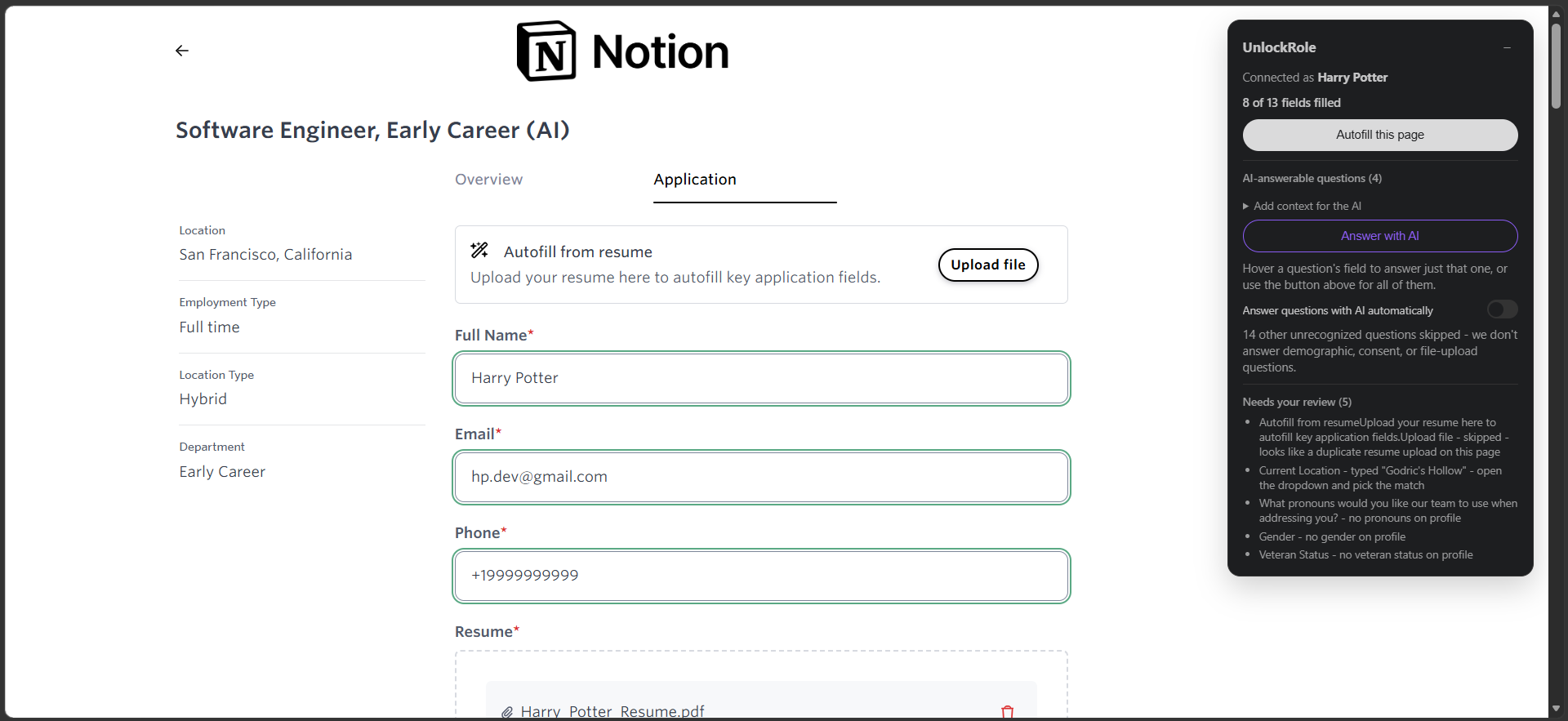
The panel doesn't stop at "done" - it also tells you what it couldn't do. In the screenshot above, "Needs your review" catches an ambiguous location match that needs picking from a dropdown, and two voluntary self-identification questions (pronouns, veteran status) the extension left alone because those fields weren't set on the profile - it never guesses them. Work through that list before you submit; it's faster than re-reading the whole form.
4. Answer the Open-Ended Questions
Scroll to the free-text questions - "Why do you want to work here?", "What technologies are you comfortable with?" - and click Answer with AI, or turn on Answer questions with AI automatically so it happens as soon as the panel detects them. Each answer is grounded in your resume, your profile, and the actual posting you're looking at, and it's written in violet so you can tell an AI-drafted answer from an autofilled one at a glance.
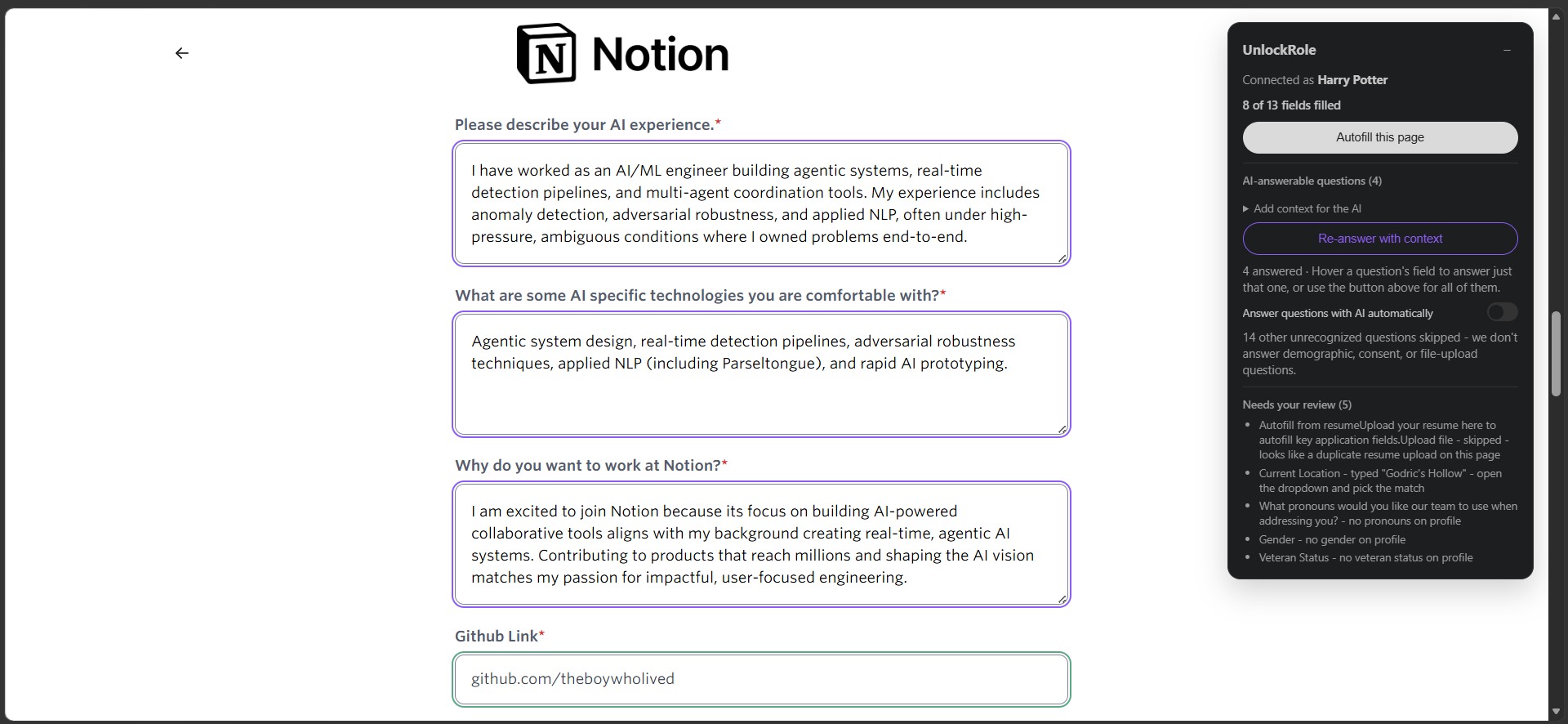
Treat these as a first draft, not a final answer. Read each one, swap in a specific detail the AI couldn't have known, and adjust the tone if it doesn't sound like you yet.
5. Personalize with "Extra Context"
Some prompts are a single free-text box with no structure at all - a "reach out to the team" message, a referral note. Open Add context for the AI, type in the detail you want included (who referred you, a specific reason you're interested, anything worth mentioning), and click Re-answer with context.
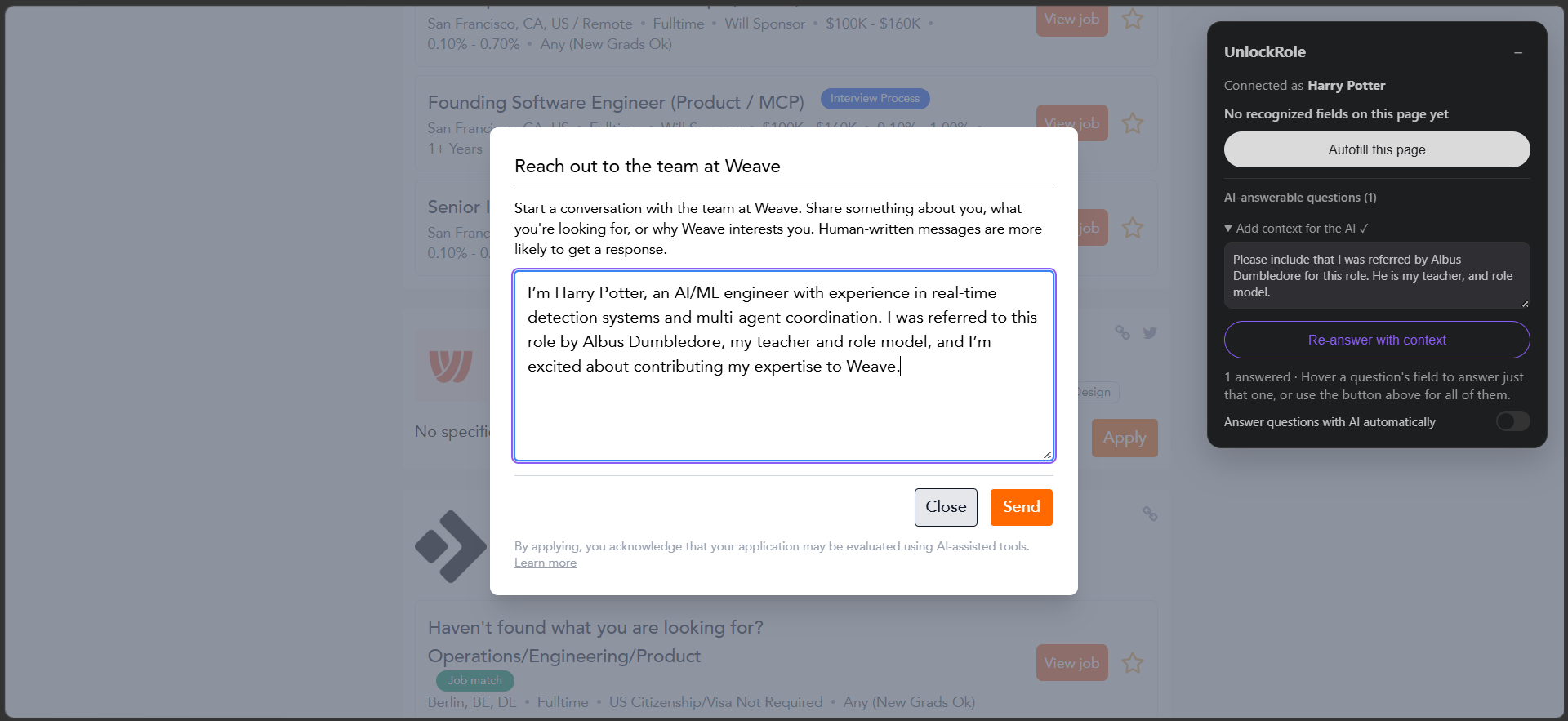
This is the fastest way to get a generic-sounding draft to actually say something specific - a referral, a shared connection, a reason tied to that company instead of any company.
Quick Start Checklist
- Install the extension and sign in with your UnlockRole account.
- Open a supported posting and click Autofill this page.
- Work through "Needs your review" before you touch submit.
- Click Answer with AI on open-ended questions, then read and edit every one.
- Use Add context for the AI to fold in a referral or a specific reason you're applying, and re-answer.
Same profile, every application - the parts that were pure repetition are handled, and the parts that need your voice still get it.
